Setup
nemox: Setup & System Requirements
Setting up nemox consists of two steps: the add-in, which your team uses to work with nemox directly in the mailbox, and mailbox access, through which nemox processes incoming emails in the background. This page walks through both steps and lists the system requirements.
Part 1
Install the add-in
The nemox add-in is an Outlook web add-in: it is not installed as a program on the PC but assigned to the user (their mailbox account), either centrally by the administrator or by the user themselves. The prerequisite is a mailbox on Exchange Online or self-hosted Exchange 2016 or newer (details: system requirements). Once installed, it is automatically available in all of the user’s Outlook clients (Windows, Mac, Outlook on the web, new Outlook); Outlook Mobile (iOS/Android) is currently not supported.
Manifest (XML), for Option A and B
Manifest (JSON, app package)
Option A: Centralized rollout by the Microsoft 365 administrator
Recommended- 01Sign in to the Microsoft 365 Admin Center (admin.microsoft.com). Requires Exchange administrator or global administrator rights.
- 02Settings → Integrated Apps → "Upload custom apps".
- 03Choose the app type "Office Add-in".
- 04Select "Provide link to manifest file" and enter
https://app.nemox.ai/api/outlook/manifest.xml. Alternatively, download the XML manifest and upload it as a file. - 05Specify the users or groups the add-in should be deployed to (entire organization or specific users/groups, for example the sales team) and complete the deployment.
- 06Deployment can take up to 24 hours; after that, "Nemo" appears for the assigned users in the ribbon or under "Apps" as soon as an email is opened or composed.
Centralized rollout also works when self-installation has been disabled by policy.
Option B: Self-installation by the user
- 01Download the XML manifest file (download button above).
- 02Open https://aka.ms/olksideload in the browser; the "Add-Ins for Outlook" dialog opens. (In classic Outlook for Windows alternatively: File → Info → Manage Add-ins, which opens the same dialog in the browser.)
- 03"My Add-ins" → section "Custom Add-ins" → "Add a custom add-in" → "Add from file" → select the downloaded XML file and confirm.
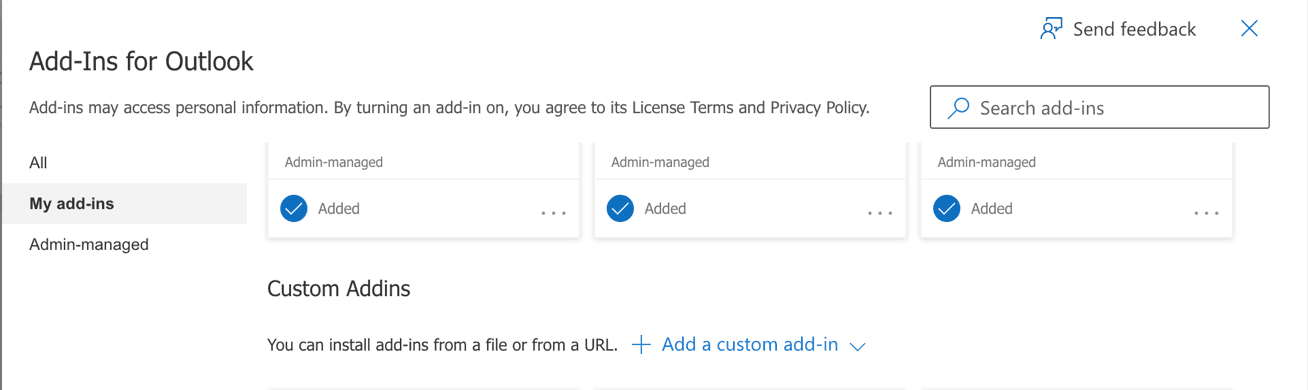
- 04In Outlook on the web and the new Outlook, the add-in is available immediately; in classic desktop Outlook it can take up to 24 hours (cache).
The installation applies to the signed-in user and syncs automatically to all of their Outlook clients. The administrator may have disabled self-installation by policy; in that case, use Option A.
First sign-in
Open an email → click "Nemo" in the ribbon → the task pane opens at the side and guides you through signing in with your nemox credentials.
Part 2
Set up mailbox access
To process incoming emails, nemox needs access to the relevant mailboxes. This access works in the background and is independent of the add-in.
Microsoft 365 / Exchange Online
StandardThese steps are performed by your Microsoft 365 administrator.
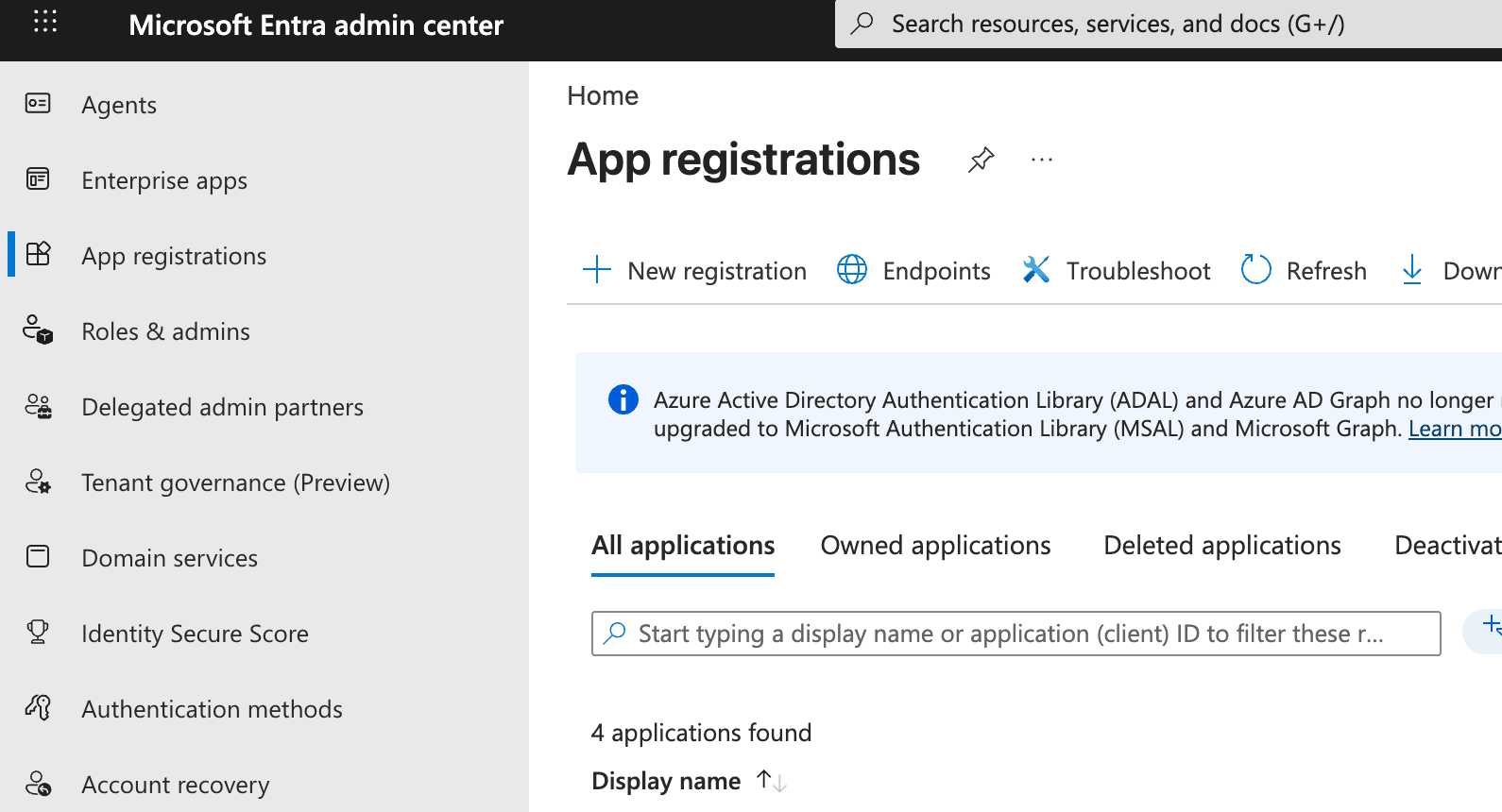
- 01Open the Microsoft Entra admin center at https://entra.microsoft.com and sign in as administrator.
- 02Select "App registrations" in the left sidebar, then click "New registration".
- 03Enter a name (e.g.
nemox-nemo), leave everything else at the defaults (single tenant), and click "Register".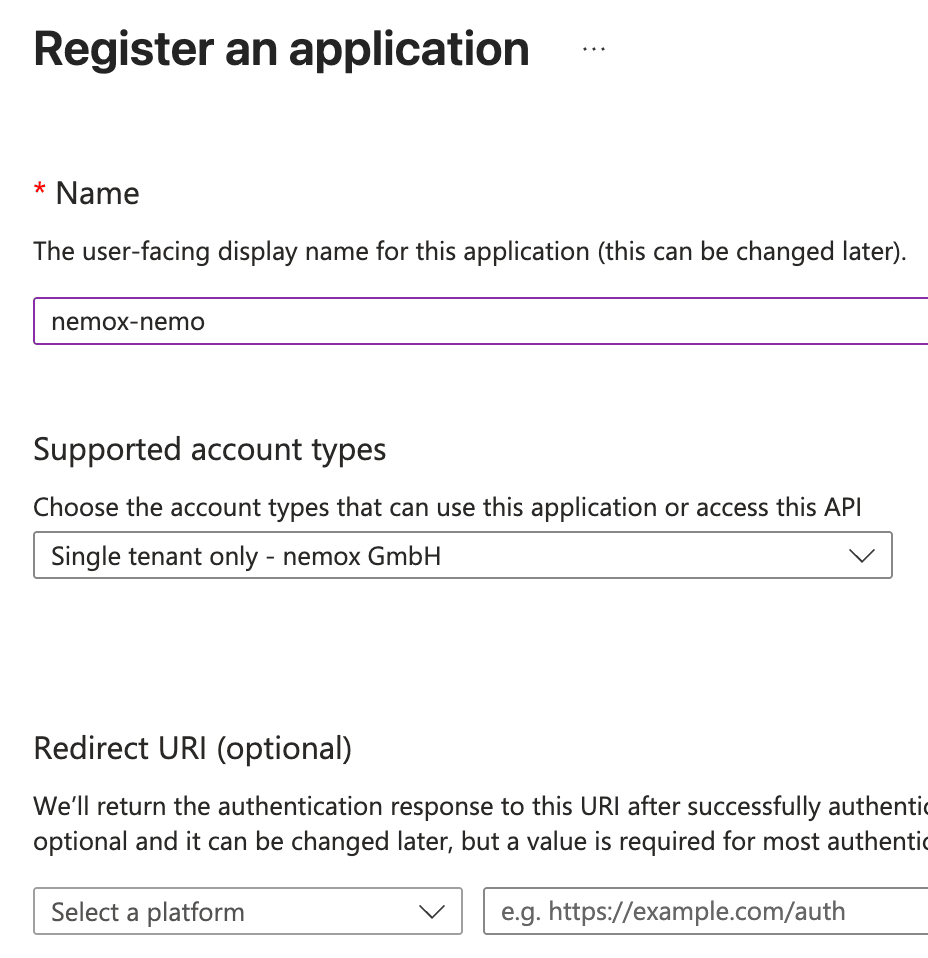
- 04"API permissions" → "Add a permission" → "Microsoft Graph" → "Application permissions": add
Mail.ReadWriteandMail.Send, then click "Grant admin consent".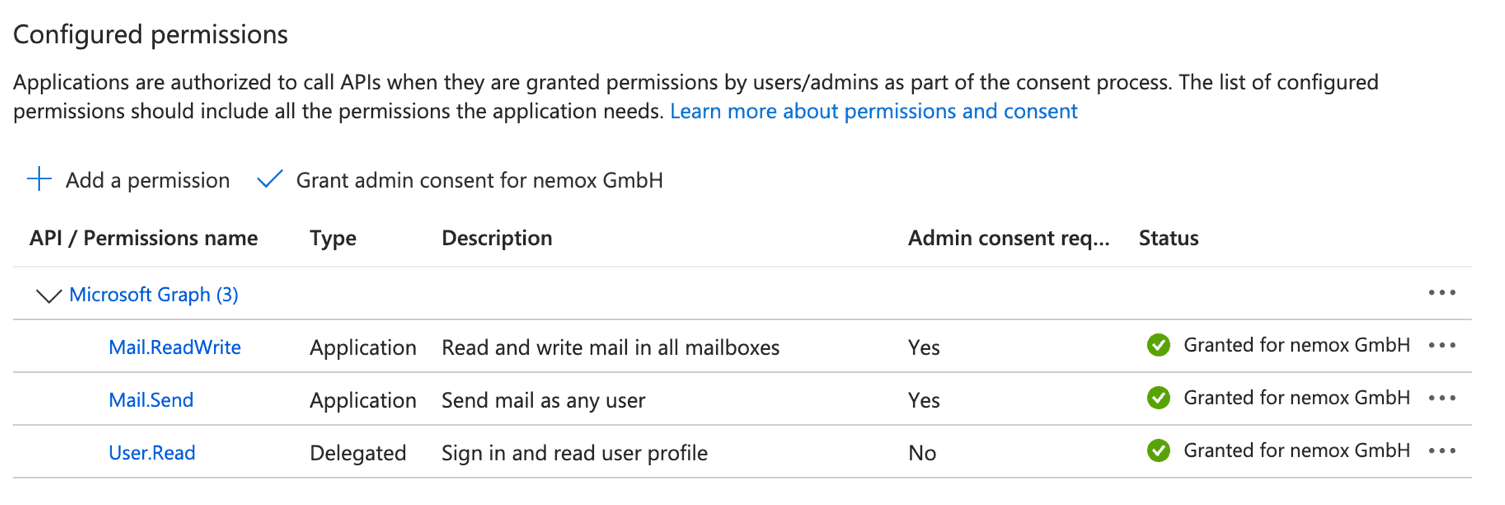
- 05Optional: access can be restricted to the specific mailboxes nemox will process instead of tenant-wide (see "Restrict access to specific mailboxes" below).
- 06"Certificates & secrets" → "New client secret": choose a description and expiry and click "Add". Copy the secret value right away, it is shown only once.
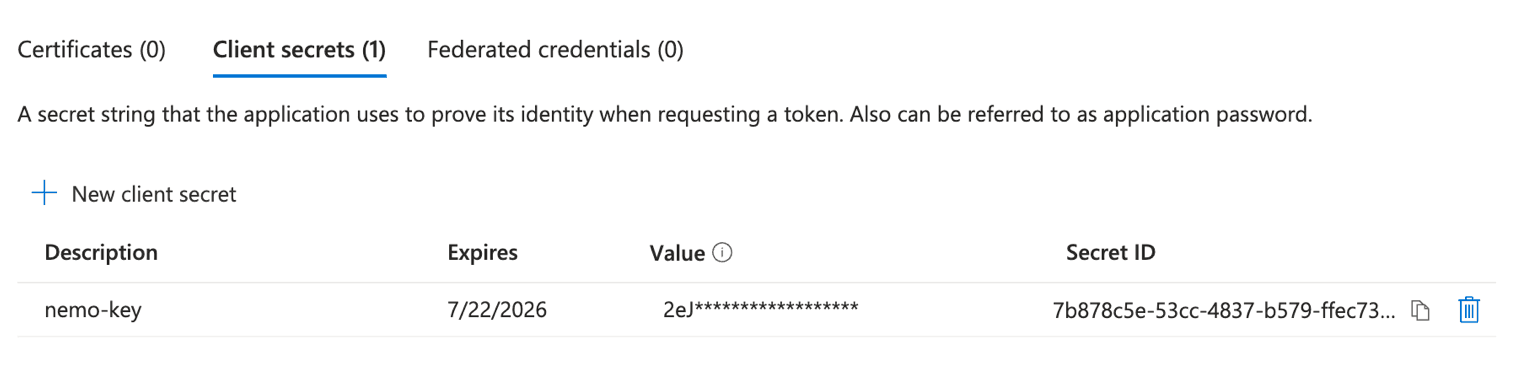
- 07Send us: Tenant ID, Client ID, client secret, and the email addresses of the mailboxes to connect (UPN). Your nemox contact will provide a secure transfer channel for this; please do not send it unencrypted by email.
Mail.ReadWrite for reading incoming emails and creating email drafts (e.g. reply and invoice drafts that open directly in Outlook). Mail.Send exclusively for sending freight-rate requests to carriers. Once we have received the credentials, we set up the connection and create the nemox user accounts for your team; you will receive the sign-in credentials for the add-in from us.
Tenant-wide access is the standard route. If your organization requires it, access can be restricted to a defined set of mailboxes via RBAC for Applications in Exchange Online. This route requires more setup effort (Exchange Online PowerShell) and replaces the older Application Access Policies.
IMAP/EWS (on request)
Connection for mailboxes outside Microsoft 365 / Google Workspace (IMAP) or on self-hosted Exchange (EWS): contact us. The Outlook add-in is not available for IMAP-connected mailboxes.
Which mailboxes?
Shared mailboxes
The usual route: nemox processes the emails of the shared mailbox (e.g. import@, quotes@).
Personal mailboxes of individual employees
Also possible, with explicit consent of the affected employees.
Reference
System requirements
Outlook add-in
| Requirement | Details |
|---|---|
| Account |
|
| Supported clients |
|
| Limited |
|
| Not supported |
|
| Network |
|
Mailbox access
| Requirement | Details |
|---|---|
| Microsoft 365 / Exchange Online |
|
| Mailboxes |
|
| Network |
|
Questions about the setup?
We'll walk you through the rollout, from mailbox access to first sign-in.
Get in touch